
How to Set Up Your Foundslot Account
When you sign in to Foundslot for the first time, a short setup walks you through the essentials. It takes about five minutes, and you can stop at any point with Finish later: it picks up where you left off.
Every step saves as you go, and Skip this step moves on without changing anything. You can change all of it later in Settings.
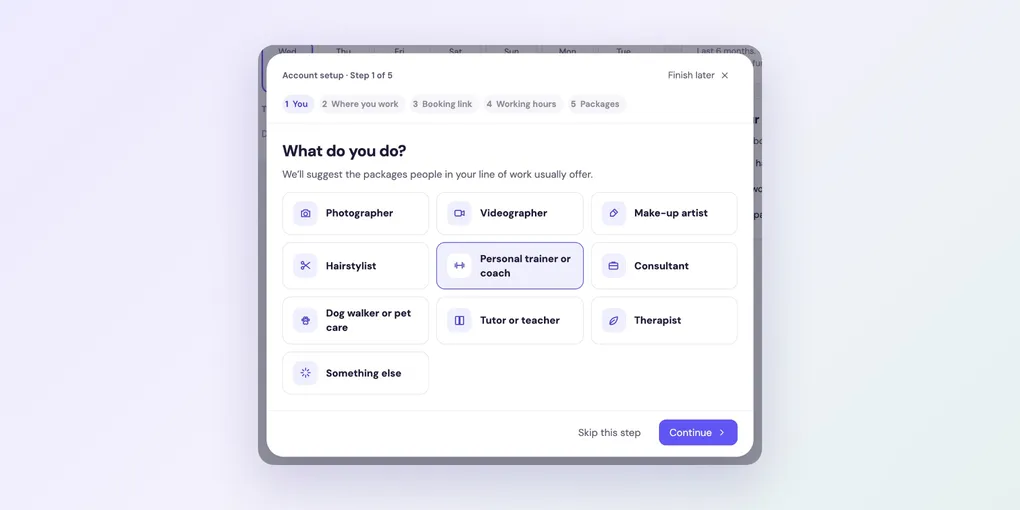
Step 1: What do you do?
Pick your line of work. Foundslot uses it to suggest the packages people in your field usually offer.
Step 2: Where do you work?
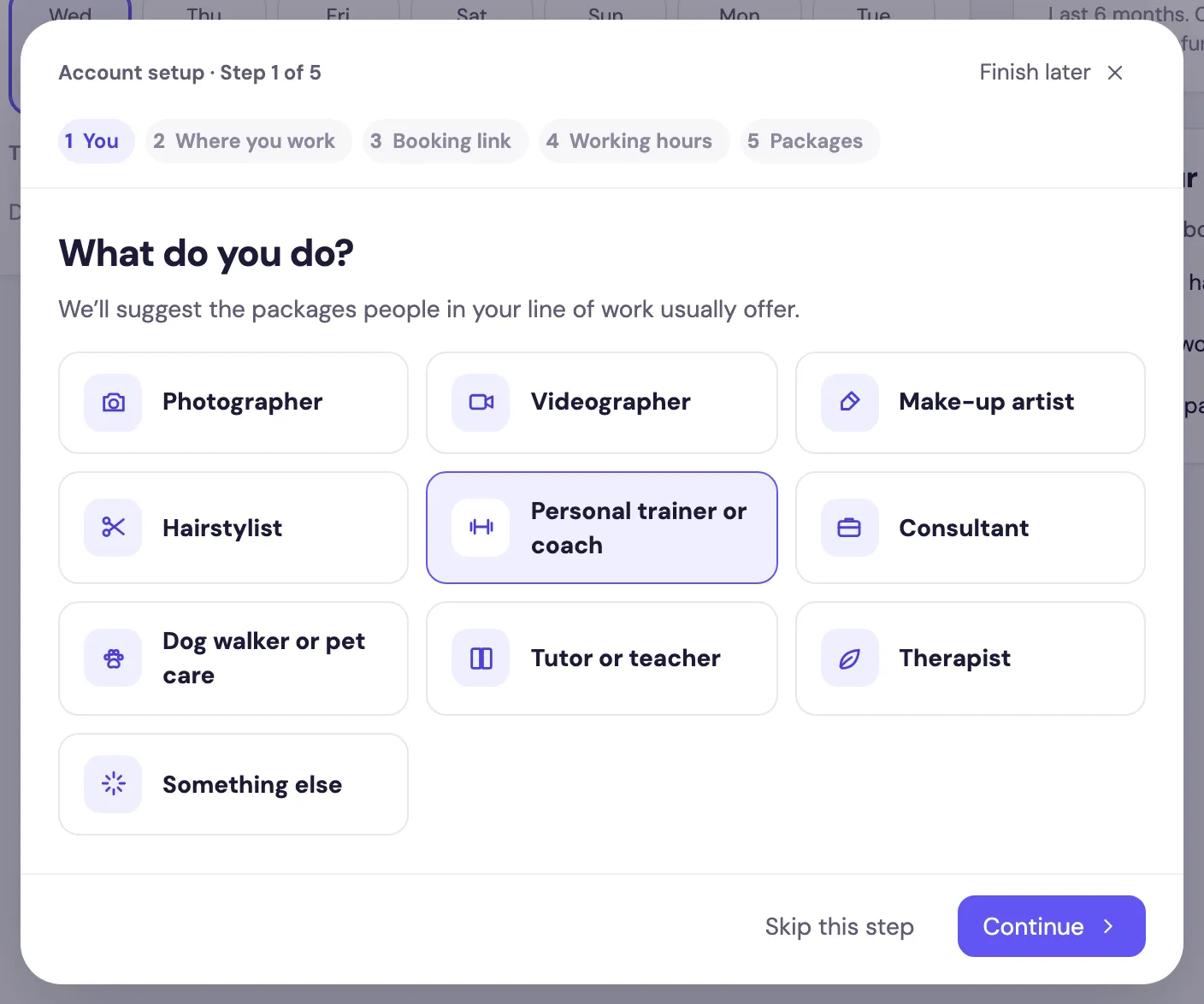
Choose every place that applies. Each package you create later happens in one of them.
- At my studio or space: add its name and address. Clients will see it, and it’s used to work out travel time.
- At my clients’ places: choose how you usually get there (car, public transport, bike or on foot) so Foundslot leaves enough time between jobs.
- Online: choose whether you can take calls Anywhere, or need to be At my studio or office.
Step 3: Choose your booking link
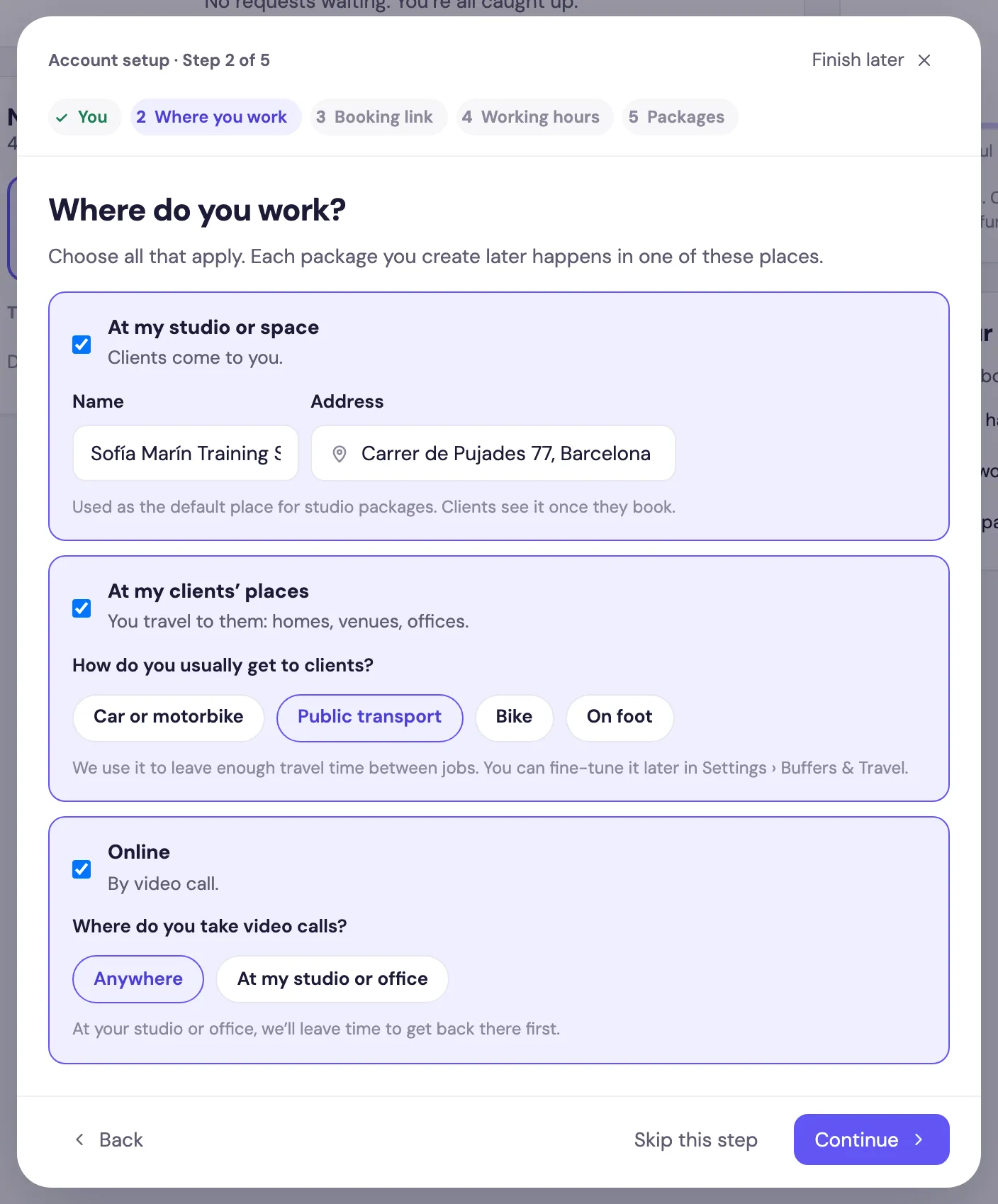
Your Handle becomes your booking link, for example app.foundslot.com/sofiamarin. A green tick shows when it’s available. Check the Timezone and Language too: they’re used for your calendar and for the emails clients receive.
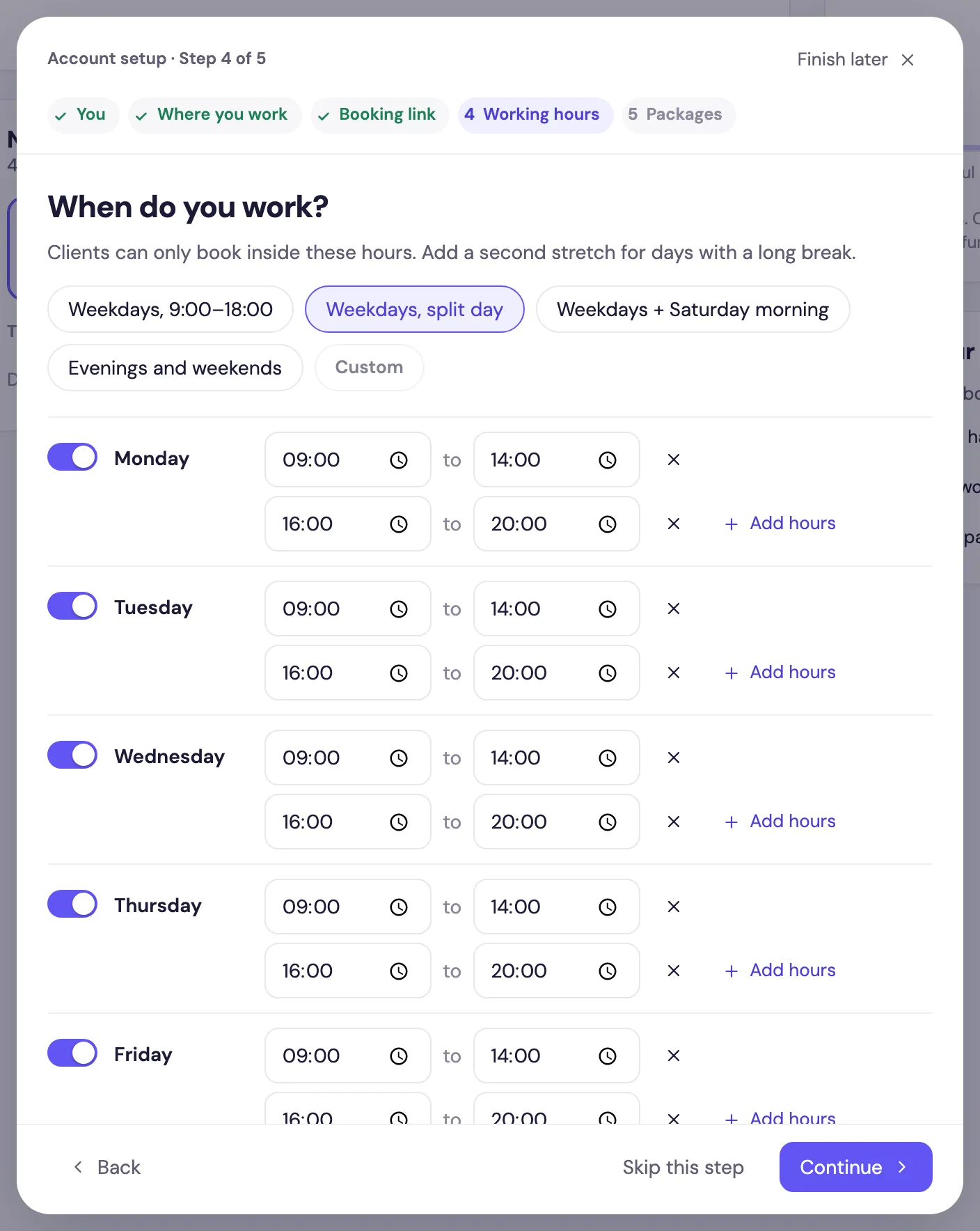
Step 4: Set your working hours
Clients can only book inside these hours. Start from a preset (such as Weekdays, 9:00–18:00 or Weekdays, split day) or set each day yourself. Add hours gives a day a second stretch, for example a lunch break.
Step 5: Pick your first packages
Foundslot suggests ready-made packages for your line of work. Tick the ones you want, set your price, and change the title or duration if you like. Edit details shows everything that’s included.
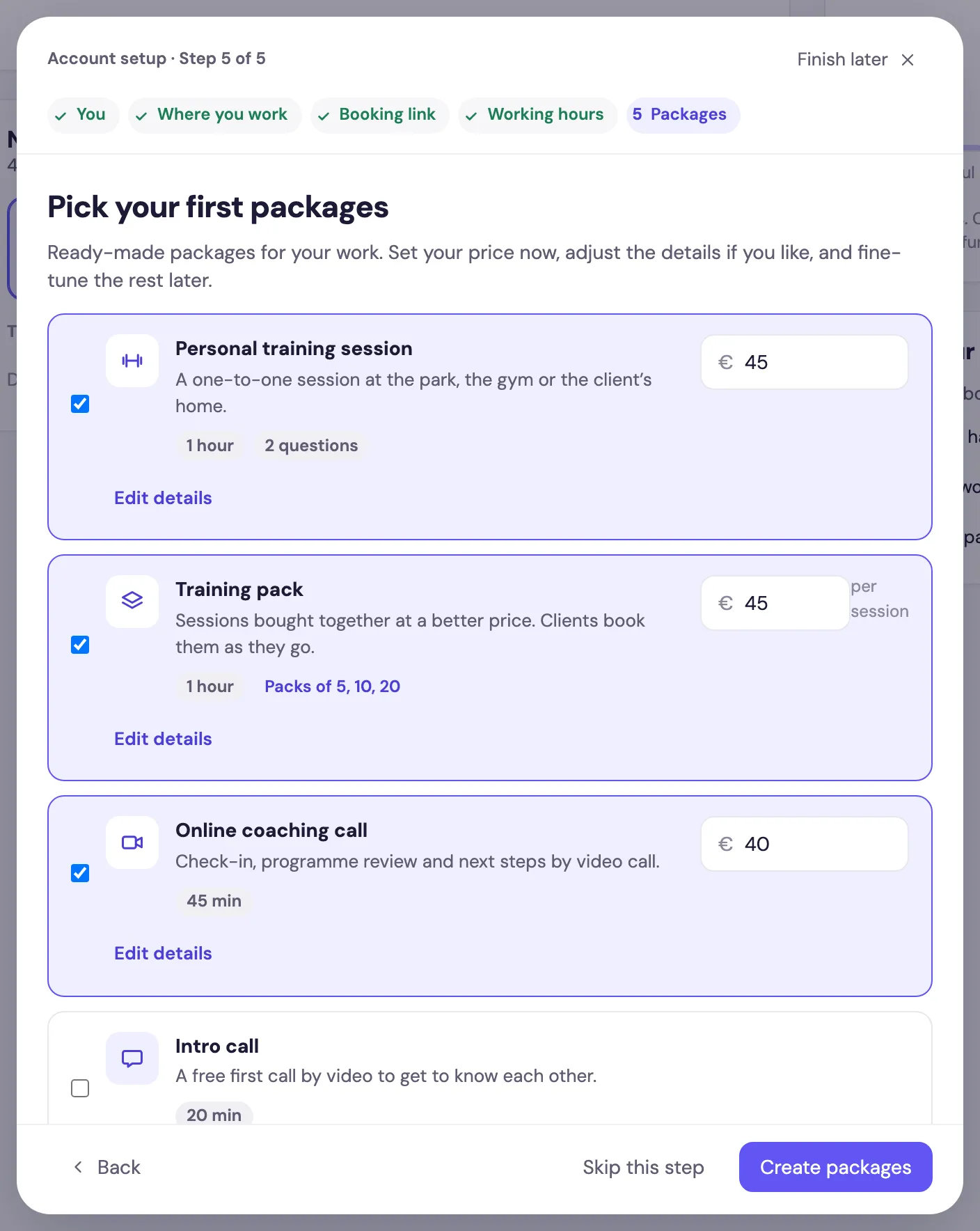
Leave Publish them straight away on to put them live on your booking page. Packages without a price are saved as drafts, and workshops are published without dates (you add those later). Click Create packages.
You’re almost ready
The last screen shows your booking link, the packages you created and a short checklist. Anything still missing, such as verifying your email, has a link to fix it.
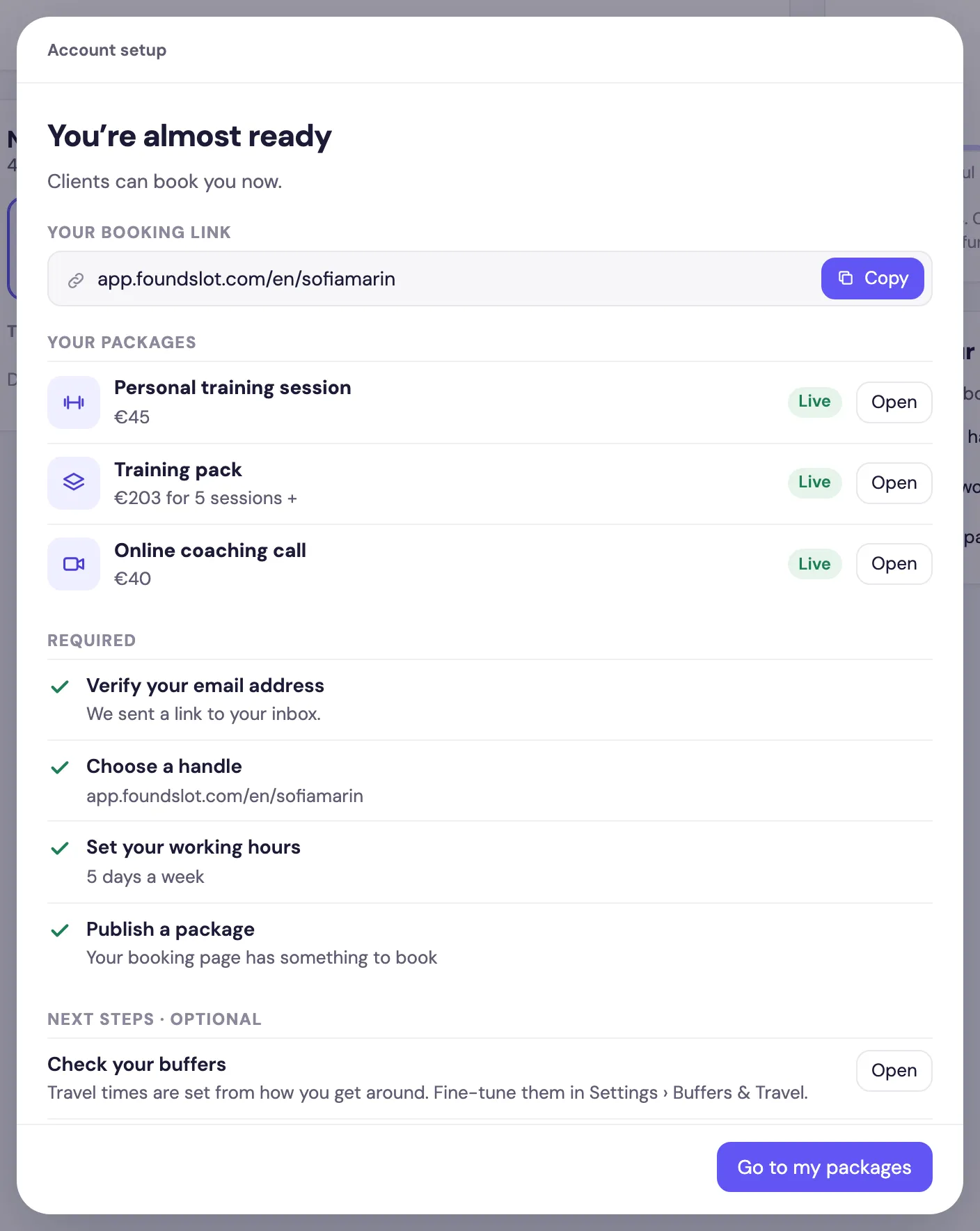
From here:
- Share your booking page with clients.
- Adjust your packages, or add a workshop or a pack of sessions.
- Fine-tune your buffers, the time Foundslot keeps between bookings.