
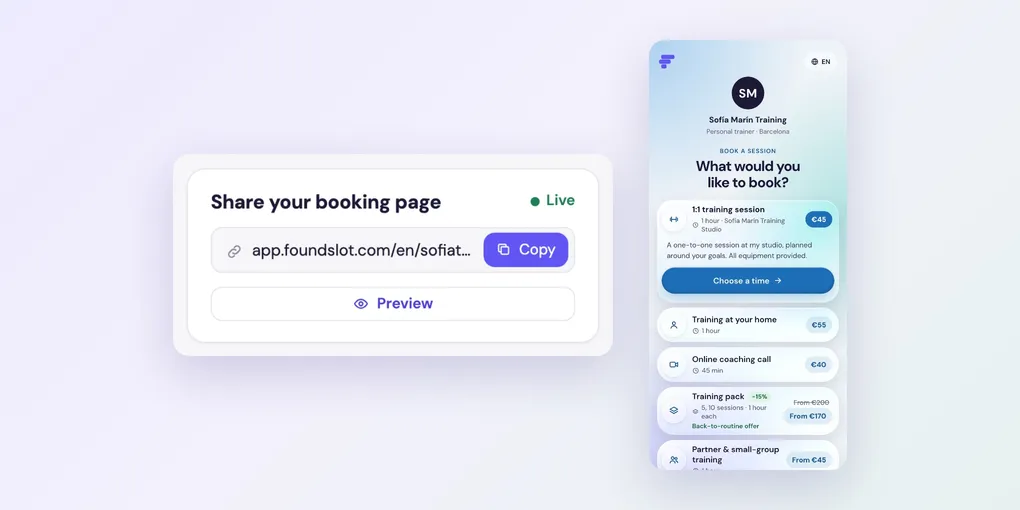
How to Share Your Foundslot Booking Page
Your booking page lists every public package, and clients book from it in a few taps. Here’s where to find its link and how to share it.
Copy your link
On Home, the Share your booking page card shows your link. Click Copy to copy it, or Preview to see the page as clients do.
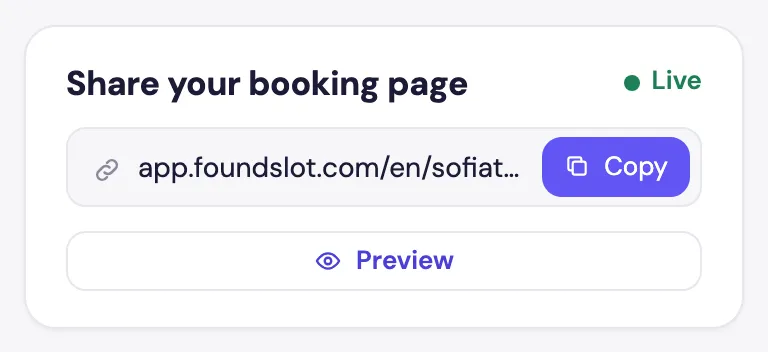
When clients can book, the card says Live. If something is missing (a verified email, working hours or a published package), the card lists it, with a link to fix each one.
Good places to share it:
- Your Instagram or TikTok bio
- WhatsApp replies and your email signature
- Your Google Business profile
- Your website: see how to add a Book now button
Share a single package
To send someone straight to one package, go to Packages, click the package and click Copy link.
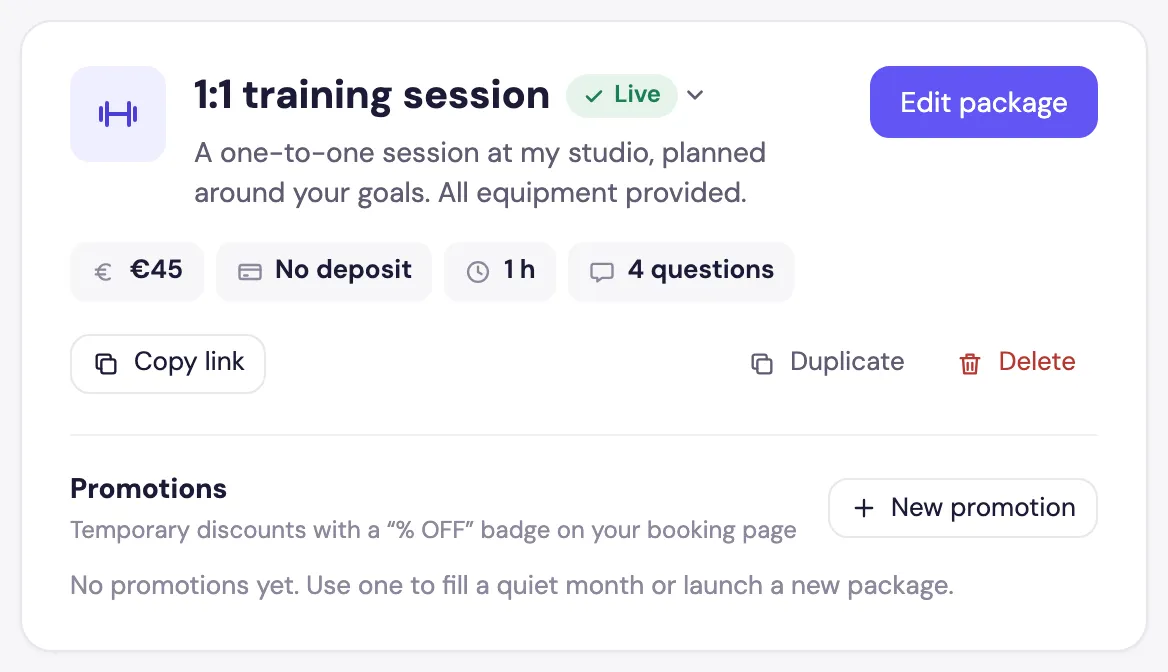
This is also how you share Private packages: they’re not on your booking page, so only people with the link can book them. Workshops have a link for each date too.
Change your link
Your link is set in Settings › Profile › Booking link. You can use letters, numbers, hyphens and underscores.
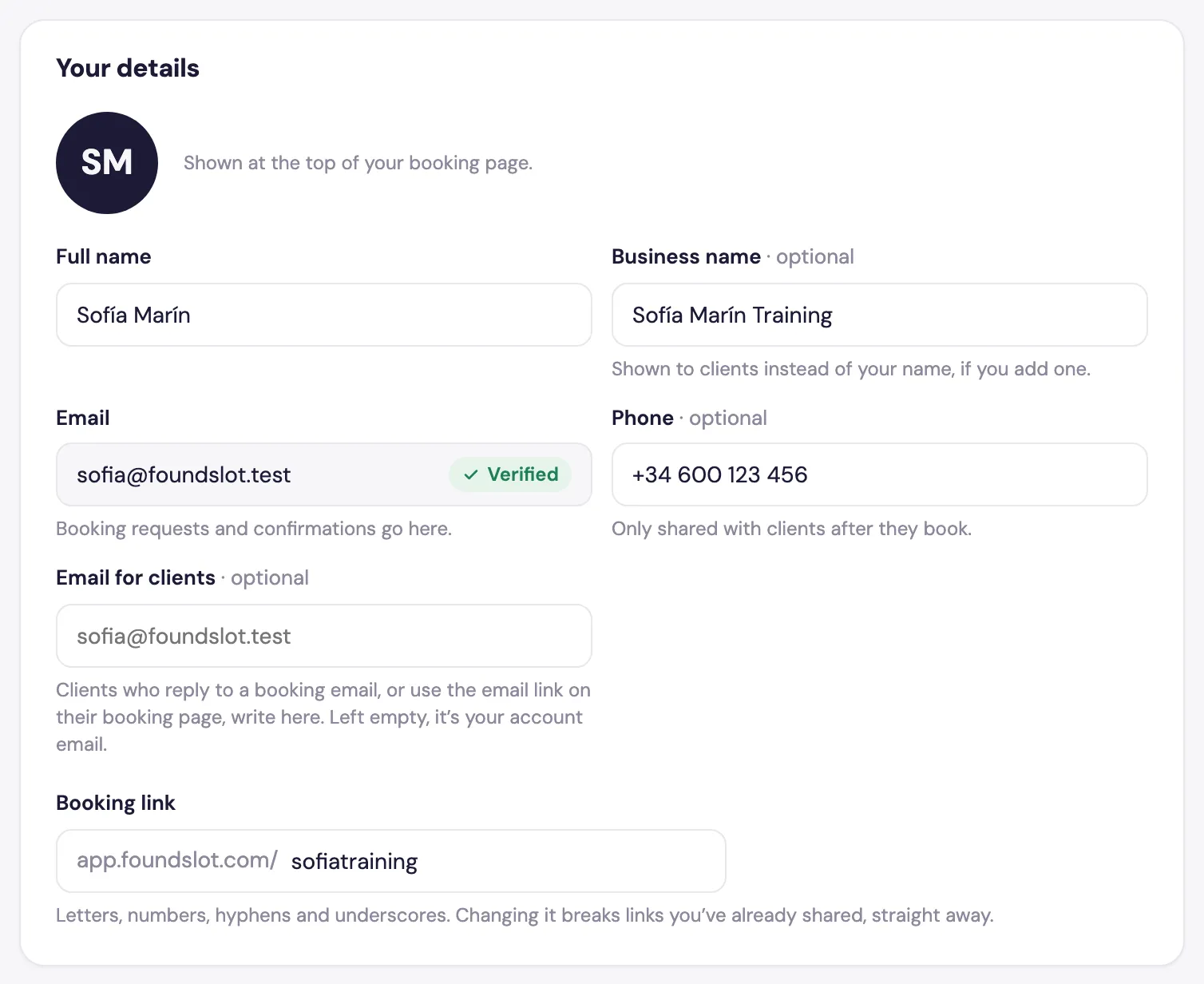
Careful: Changing it breaks the links you’ve already shared, straight away.