How to Block Time Off and Set Buffers Between Bookings
Two things keep your calendar realistic: time off, for when you’re away, and buffers, the gaps Foundslot keeps between bookings.
Block time off
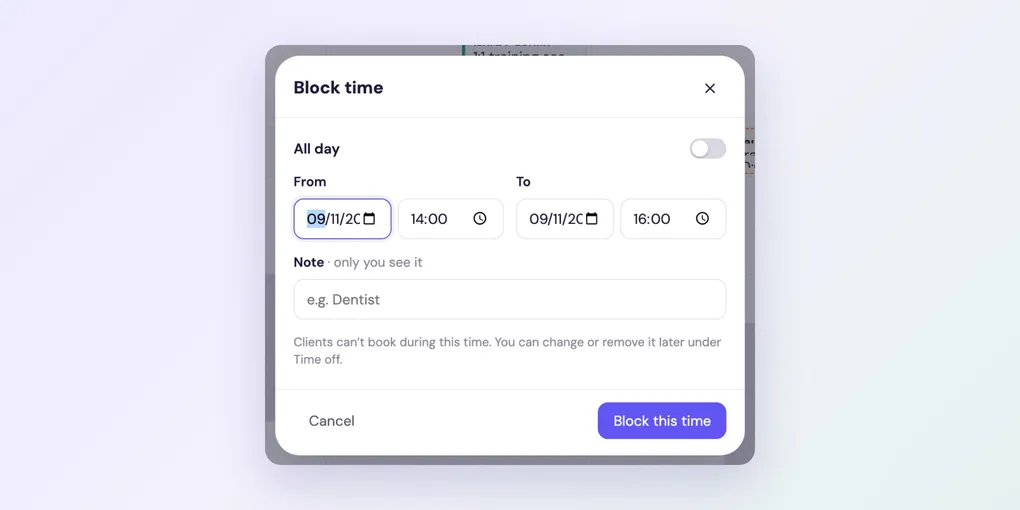
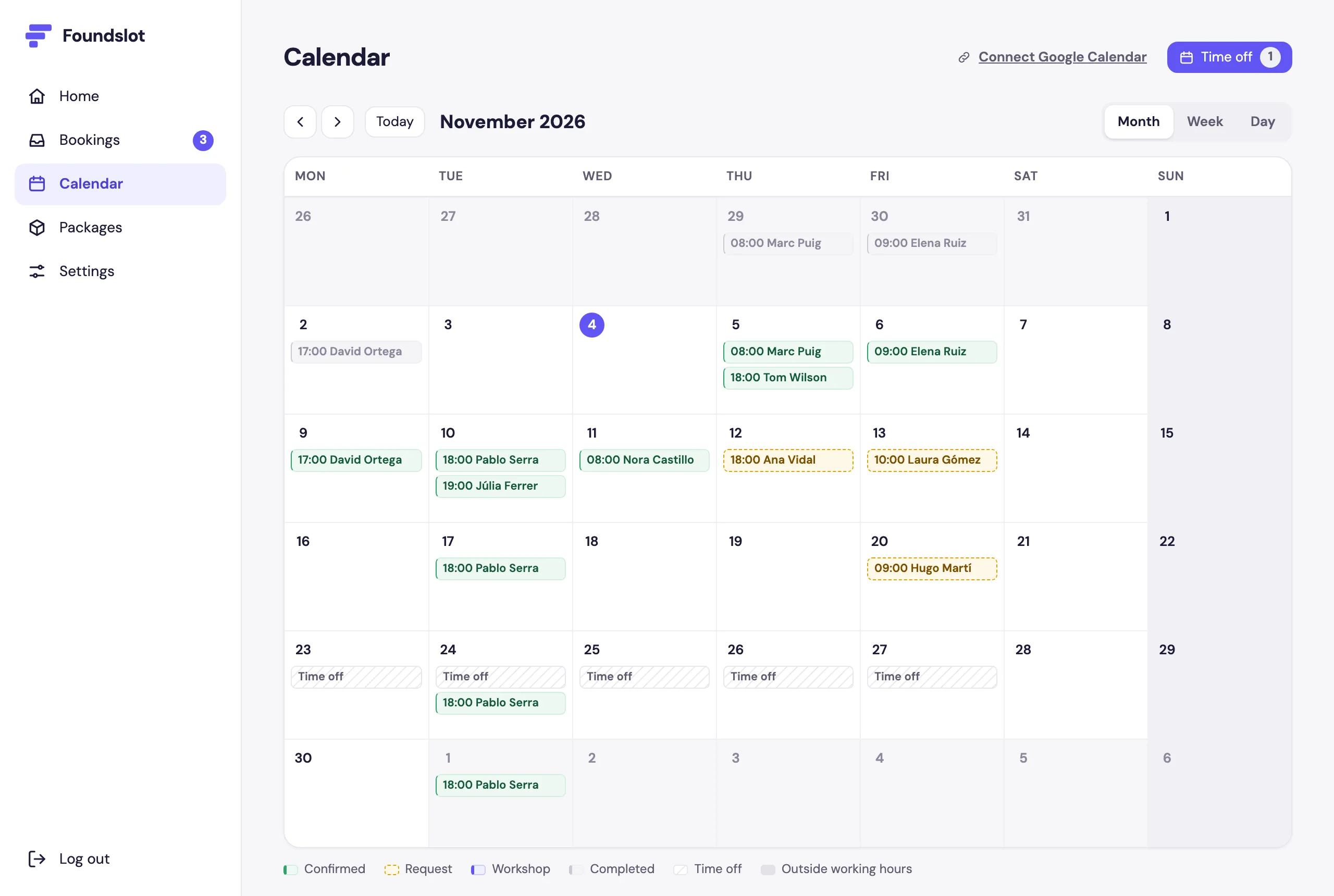
Go to Calendar and click Time off. You’ll see what’s coming up, with Edit and remove for each entry. Click Block time to add one.
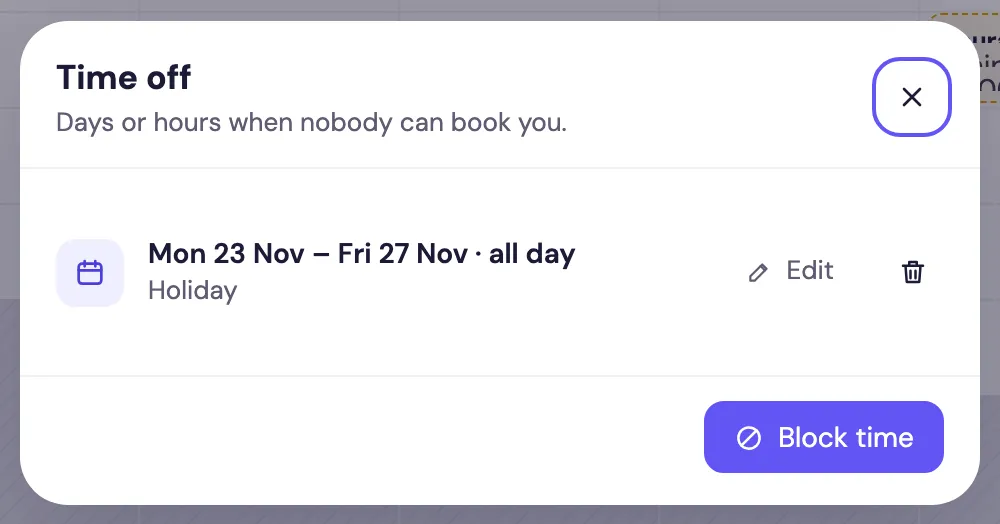
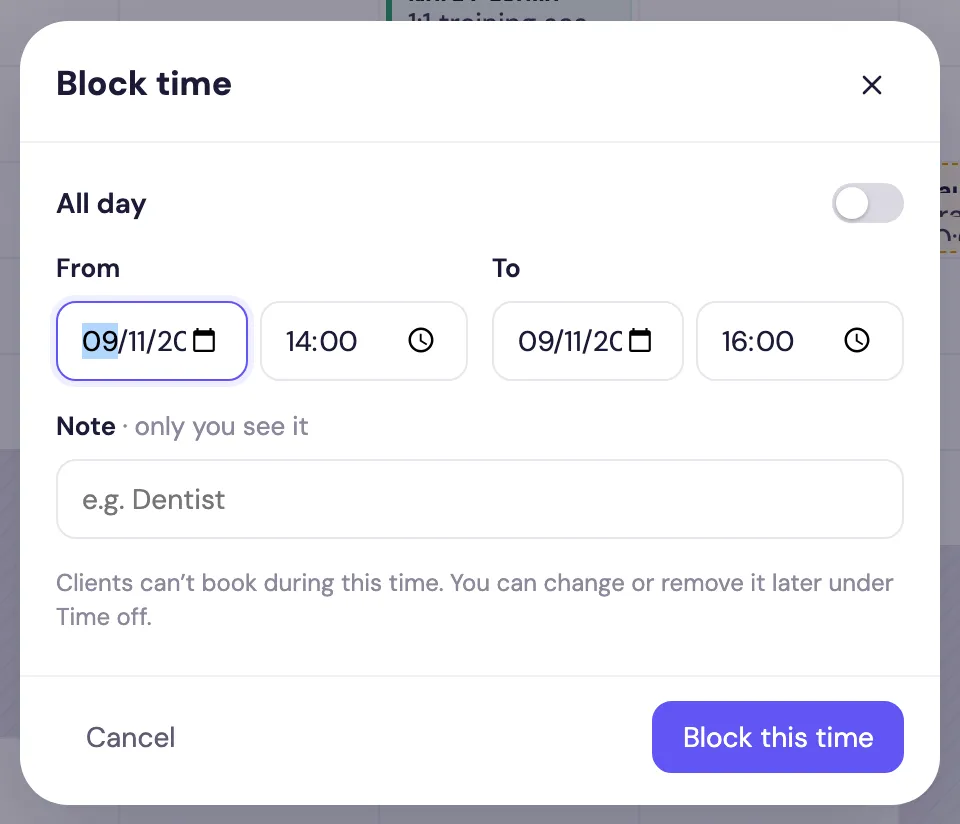
Choose All day for whole days, or set the hours, then add a Note (only you see it) and click Block this time. Clients can’t book during it.
If you already have bookings in that time, Foundslot lists them first. They’re never changed: you decide what to do with them.
Time off shows on your calendar in Month, Week and Day views:
Set your buffers
A buffer is free time Foundslot keeps after a booking, so you can rest, prepare or travel. It depends on where your jobs are: short between two sessions at your studio, longer when you cross the city. Go to Settings › Buffers & Travel.
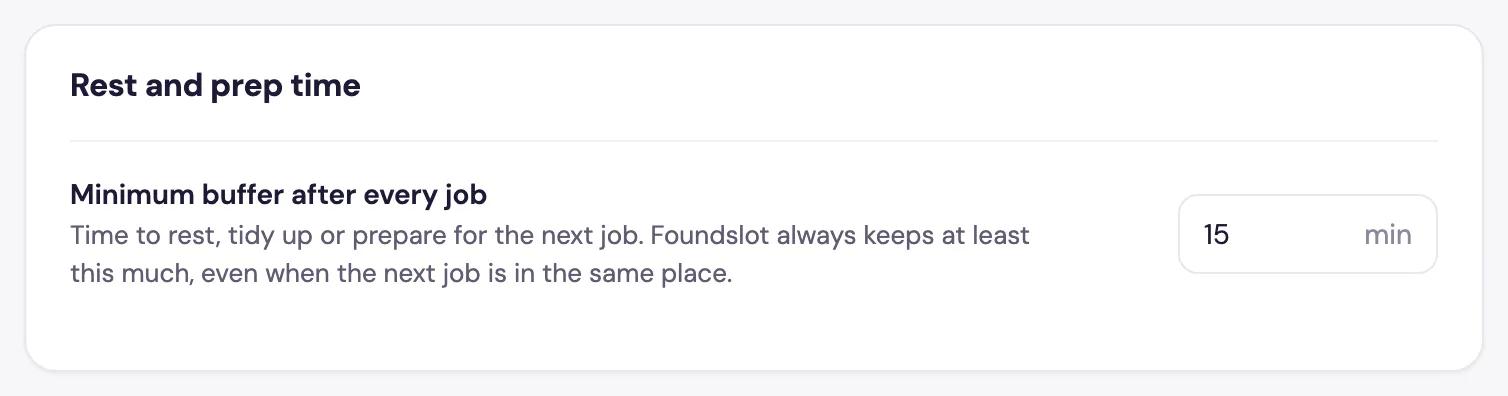
Rest and prep time is the minimum buffer after every job, even when the next one is in the same place.
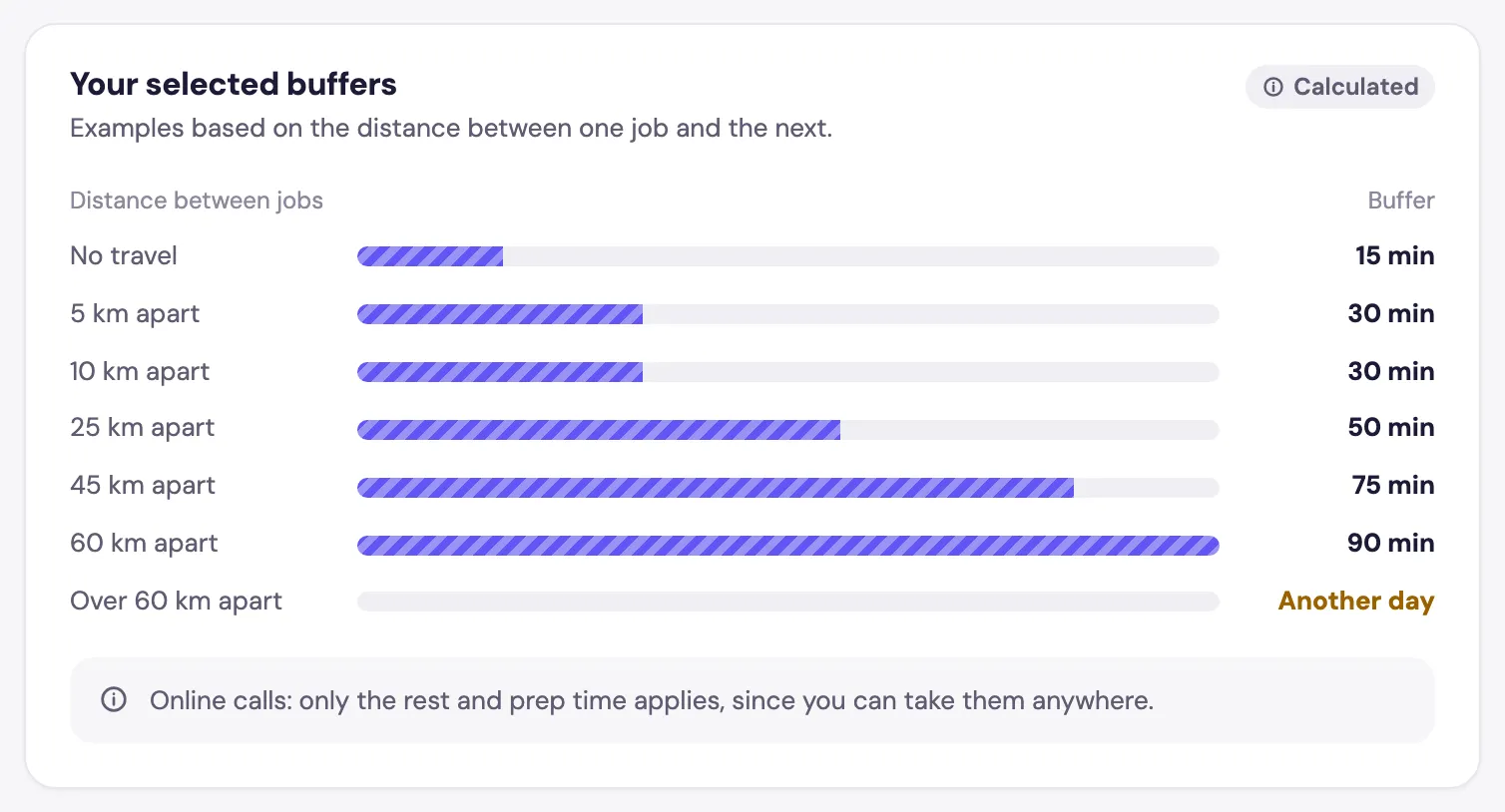
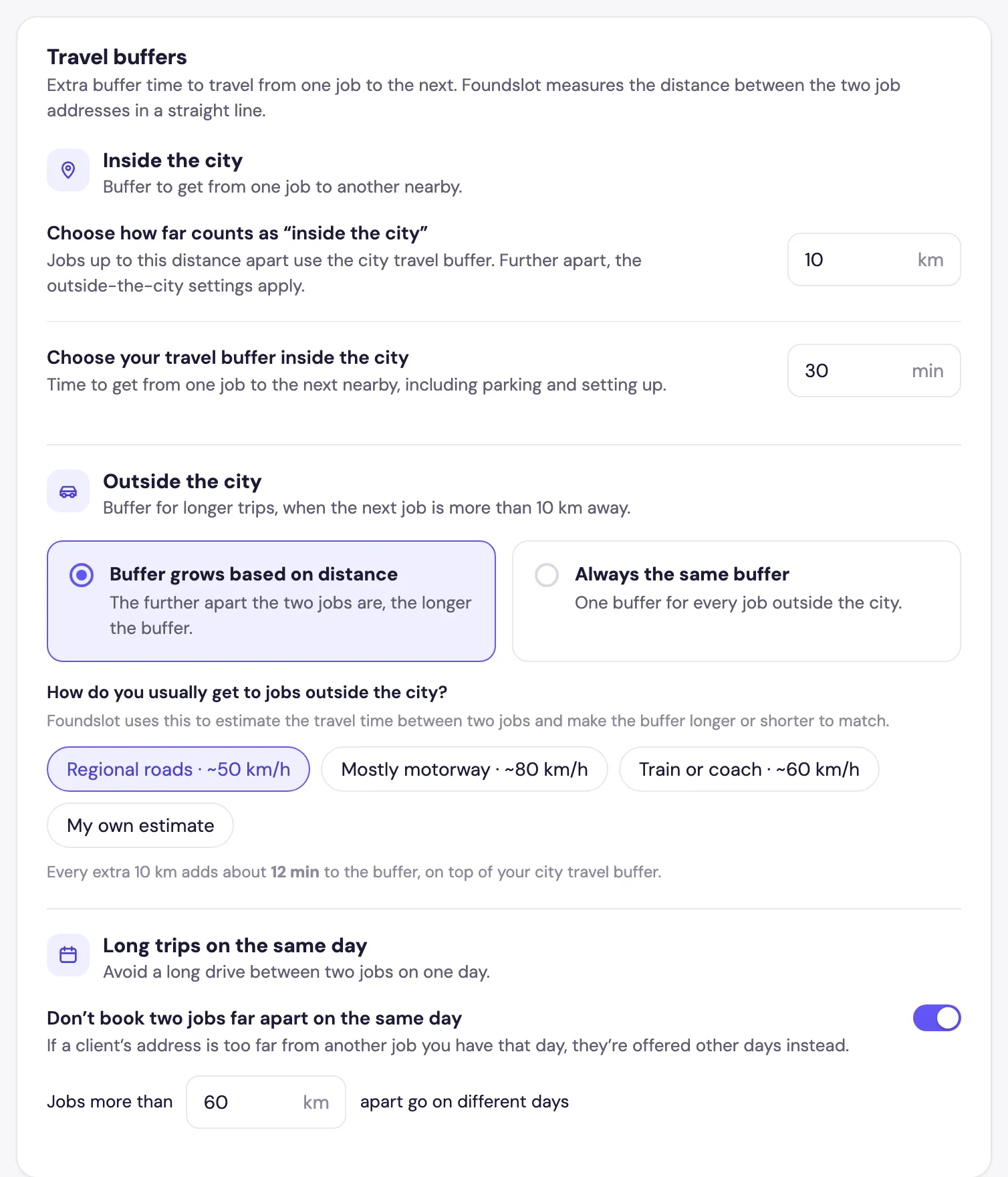
Travel buffers add time to get from one job to the next, measured in a straight line:
- Inside the city: choose how far counts as “inside the city”, and the buffer for those trips.
- Outside the city: a buffer that grows with distance (based on how you usually travel) or always the same.
- Long trips on the same day: jobs more than a set distance apart go on different days.
- Online calls: take them anywhere, or leave time to get back to your studio first.
Your selected buffers shows the result for different distances: