
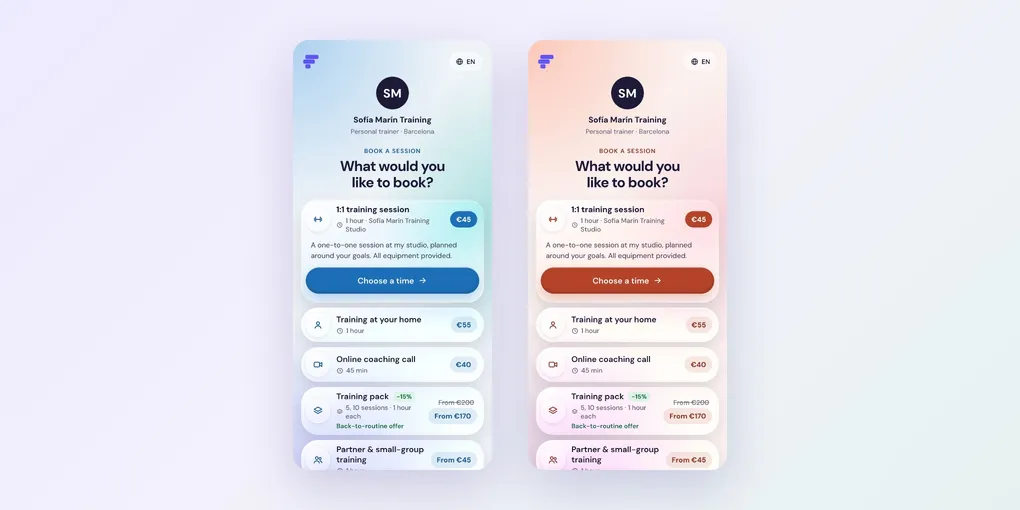
How to Customise Your Foundslot Booking Page
Your booking page is the first thing clients see. You can choose its style and the name and subtitle at the top, all from Settings.
Choose a style
Go to Settings › Appearance. Under Booking page style, pick one of the colourful styles (Mist, Aurora, Lavender, Sage, Sunset, Ocean, Honey) or the corporate ones (Slate, Graphite, Paper).
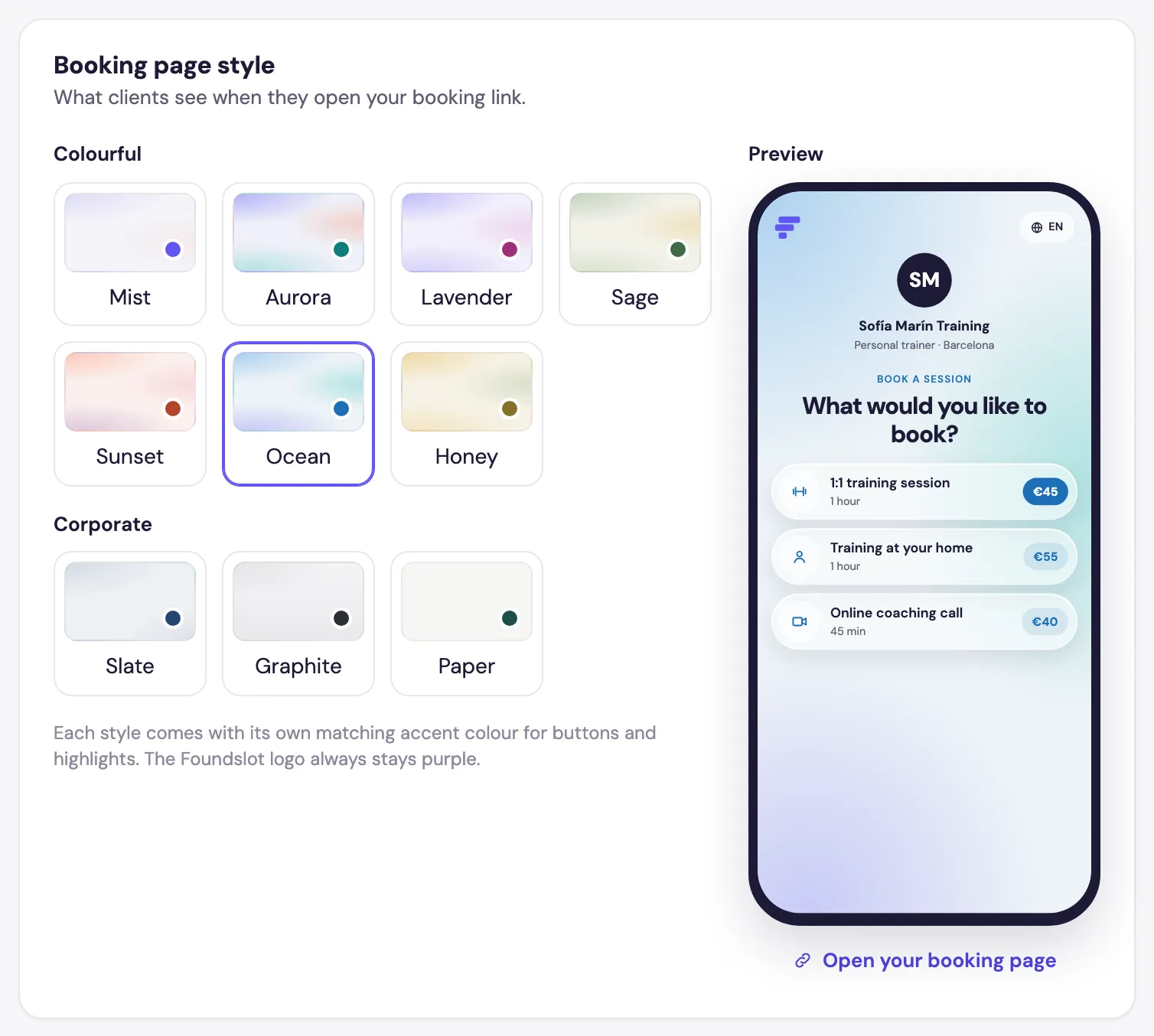
Each style has its own matching accent colour for buttons and highlights. The Preview updates straight away, and Open your booking page shows the real thing.
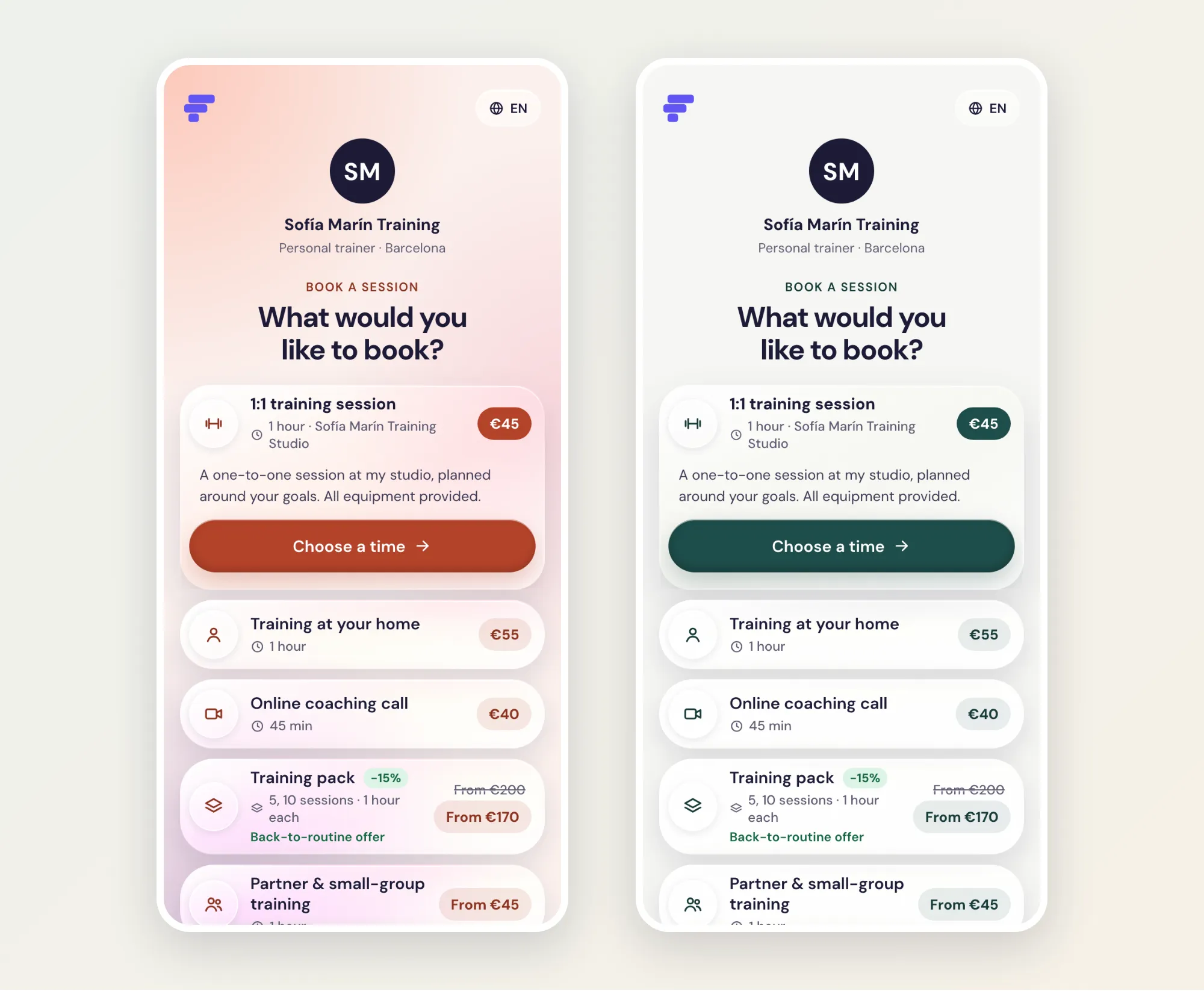
Set your name and subtitle
In the same tab, Name and subtitle controls the top of your page:
- Shown as: your business name, or your own name if you haven’t added one.
- Subtitle: a few words under it, such as Personal trainer · Barcelona.
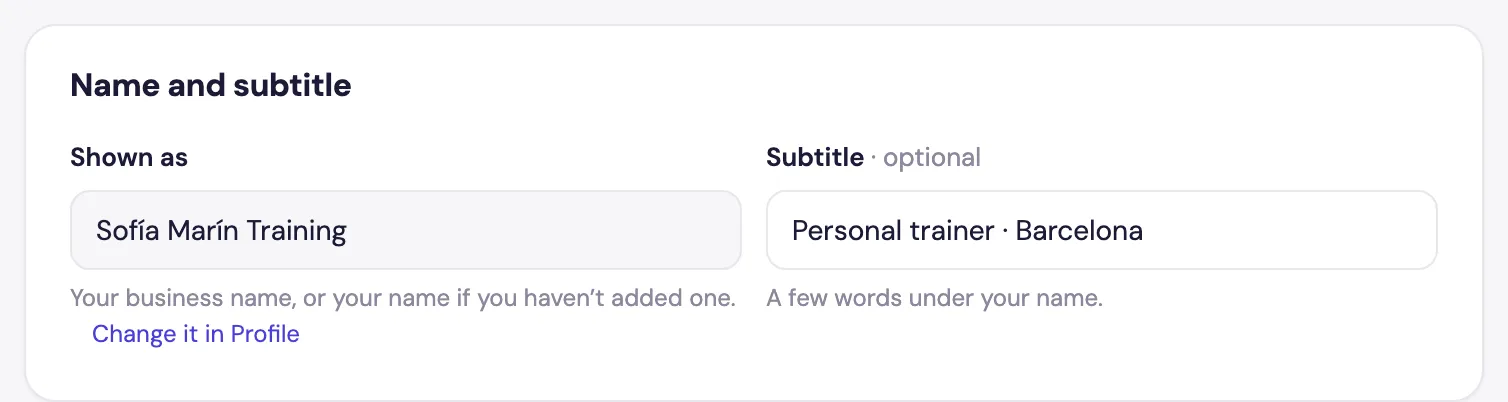
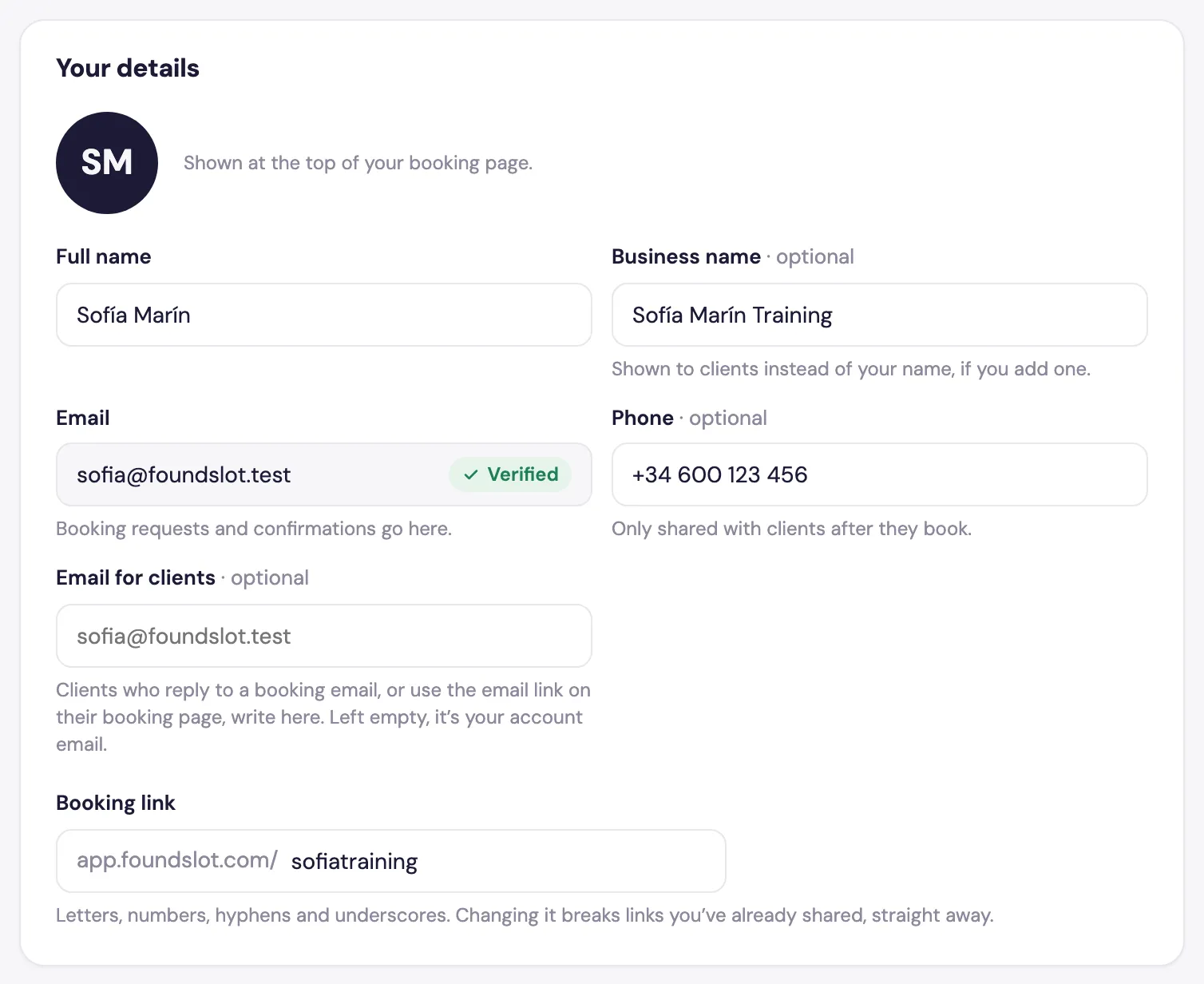
To change the name, go to Settings › Profile. There you can add a Business name, a phone number (only shared with clients after they book) and an Email for clients, where their replies go.
Foundslot branding
On the Free plan, your booking page shows Powered by Foundslot at the bottom. On Pro it’s hidden.
Your packages, in your order
The packages on your page appear in the order of your Packages list. To change it, see how to manage your packages.